Animation Classes
How To Add Animations:

Animations are applied by adding specific classes to the Advanced / Additional CSS Classes field in the editor. You can add both default animation and advanced animation in the additional css classes field. By default animations are initiated by adding the class uncg-animate. This triggers a fade-up effect, where the element smoothly fades into view from the bottom as the user scrolls.
For more control over the appearance, timing, and behavior of the animation, you can combine uncg-animate with advanced classes. These advanced classes make up 4 parts of a single animation:
- Effect – The type of animation (e.g., fade, slide, flip, or zoom).
- Timing – How long the animation lasts and whether there’s a delay before it starts.
- Easing – The movement behavior of the animation (e.g., linear, ease-in, or bounce).
- Offset – When the animation should trigger based on the element’s position on the screen.
Example: To create a sliding effect from the right with a 300px offset, you would use: uncg-animate uncg-effect-slide-right uncg-offset-300
For more information about advanced classes see the Advanced CSS Classes section below.
Quick Start Default Animations:
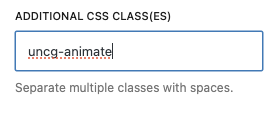
To add the default animation effect to a WordPress Block use the following steps:
- Open the Advanced / Additional CSS Classes field in the editor for the desired element.
- Add the base class
uncg-animateto activate the animation. - Customize the animation by adding the appropriate classes for effect, timing, easing, and offset as outlined below.
Advanced CSS Classes:
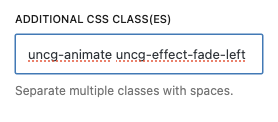
While the default setup for adding animations—using the uncg-animate class—works well for basic fade-up effects, the Advanced CSS Classes allows you to take animations to the next level with advanced customizations. By adding specific classes like uncg-effect, you can refine the type of animation (e.g., slide, zoom, or flip). Advanced classes such as uncg-delay and uncg-duration let you control the timing and length of animations, while uncg-offset and uncg-easing enable precise adjustments to the animation’s trigger point and movement behavior. This advanced approach gives you the flexibility to create smooth, engaging animations that are tailored to your content and user experience.
Animation Effects:
The uncg-effect classes determine the type of animation. Here are the options:
- Fade Effects
uncg-effect-fadeuncg-effect-fade-upuncg-effect-fade-downuncg-effect-fade-leftuncg-effect-fade-rightuncg-effect-fade-up-rightuncg-effect-fade-up-leftuncg-effect-fade-down-rightuncg-effect-fade-down-left
- Flip Effects
uncg-effect-flip-upuncg-effect-flip-downuncg-effect-flip-leftuncg-effect-flip-right
- Slide Effects
uncg-effect-slide-upuncg-effect-slide-downuncg-effect-slide-leftuncg-effect-slide-right
- Zoom Effects
uncg-effect-zoom-inuncg-effect-zoom-in-upuncg-effect-zoom-in-downuncg-effect-zoom-in-leftuncg-effect-zoom-in-rightuncg-effect-zoom-outuncg-effect-zoom-out-upuncg-effect-zoom-out-downuncg-effect-zoom-out-leftuncg-effect-zoom-out-right
Animation Timing and Easing:
Customize the timing and behavior of the animation using these classes:
- Delay
- Use
uncg-delay-1000to add a delay (in milliseconds).
- Use
- Duration
- Use
uncg-duration-1000to set the animation duration (in milliseconds).
- Use
- Easing Functions
- Use the following classes to define easing:
uncg-easing-linearuncg-easing-easeuncg-easing-ease-inuncg-easing-ease-outuncg-easing-ease-in-outuncg-easing-ease-in-backuncg-easing-ease-out-backuncg-easing-ease-in-out-backuncg-easing-ease-in-sineuncg-easing-ease-out-sineuncg-easing-ease-in-out-sineuncg-easing-ease-in-quaduncg-easing-ease-out-quaduncg-easing-ease-in-out-quaduncg-easing-ease-in-cubicuncg-easing-ease-out-cubicuncg-easing-ease-in-out-cubicuncg-easing-ease-in-quartuncg-easing-ease-out-quartuncg-easing-ease-in-out-quart
- Use the following classes to define easing:
Animation Trigger Offset:
Control when the animation triggers using uncg-offset classes:
- Example:
uncg-offset-200(trigger the animation 200px earlier or later).