Microsite Settings
Let’s Get Personal
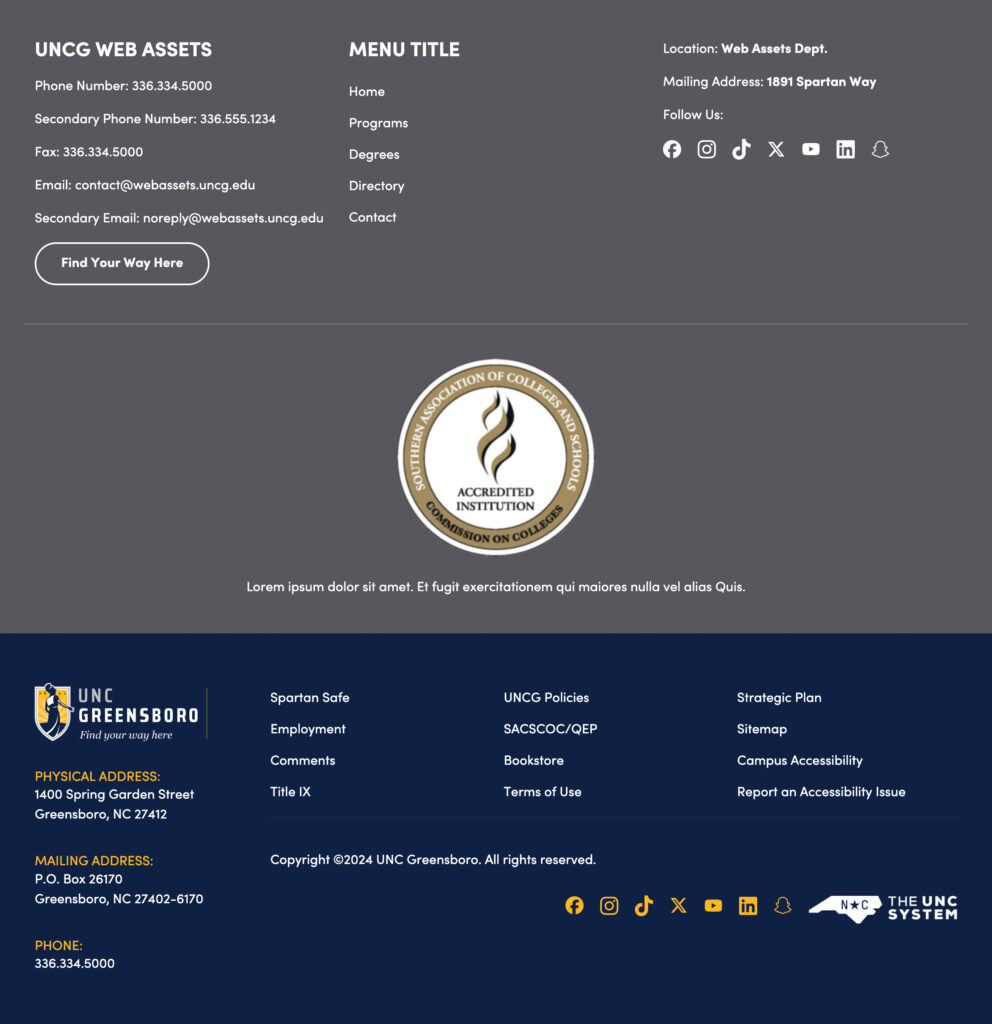
Looking for a way to personalize your website even more? If you visit Theme Settings > Microsite in the WordPress dashboard of your site, you have the option to add accreditation, personalized email and mailing address, as well as connect to your school or departments social media accounts. Let’s walk through each section below.
Microsite Footer Accreditation
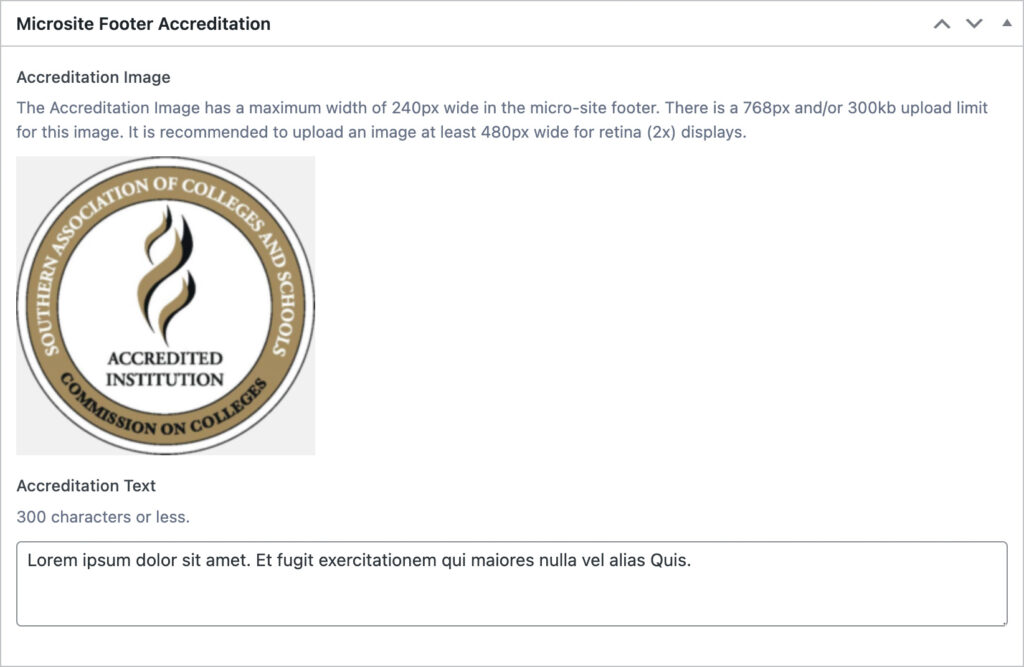
The Accreditation Image lorem ipsum dolor sit amet. Aut voluptatem aperiam est error ipsam est optio nisi et quibusdam ipsa. The Accreditation Text lorem ipsum dolor sit amet. Aut voluptatem aperiam est error ipsam est optio nisi et quibusdam ipsa.
Microsite Footer Column 1
The first (starting from the left) column can contain two different phone numbers, along with a fax and two different email addresses. Immediately following the information found in this first column, there can be a CTA (call-to-action) button to direct users to a page of your choosing.

Microsite Footer Column 2
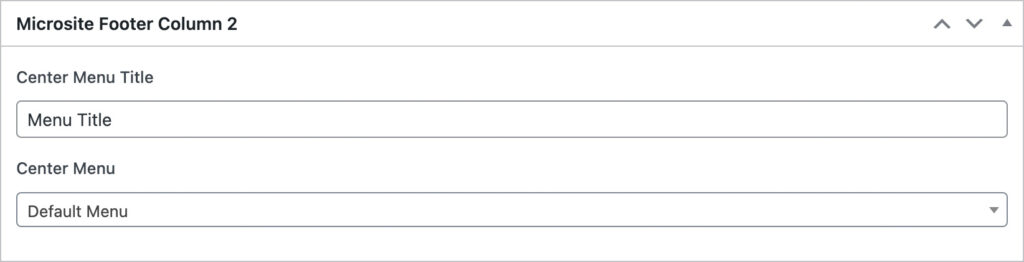
For column 2, you can add any menu you’ve already created in the Appearance > Menus section of the dashboard.
Microsite Footer Column 3
Column 3 is where you can add your physical or mailing address, as well as connecting to many of your social media account. The social media icons are ready and waiting for you to add your link in the sections shown below.

Example
Framework
Column 1
Column 2
Column 3
Accreditation
Front-end